macOS
Relabel
A bulk file renamer for macOS. Rules stack in a sidebar and run top to bottom, and every file in the list shows its new name while you are still typing it. Designed to replace the Windows renamer I lose when I switch to a Mac.
Overview
A renamer that looks like it came with the Mac
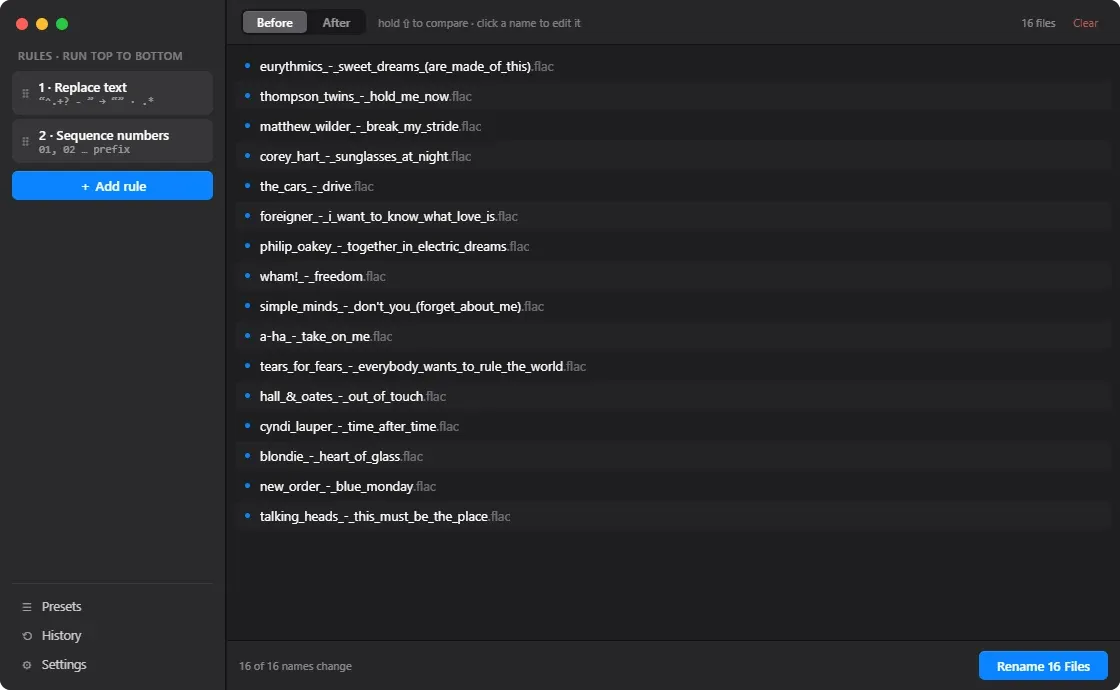
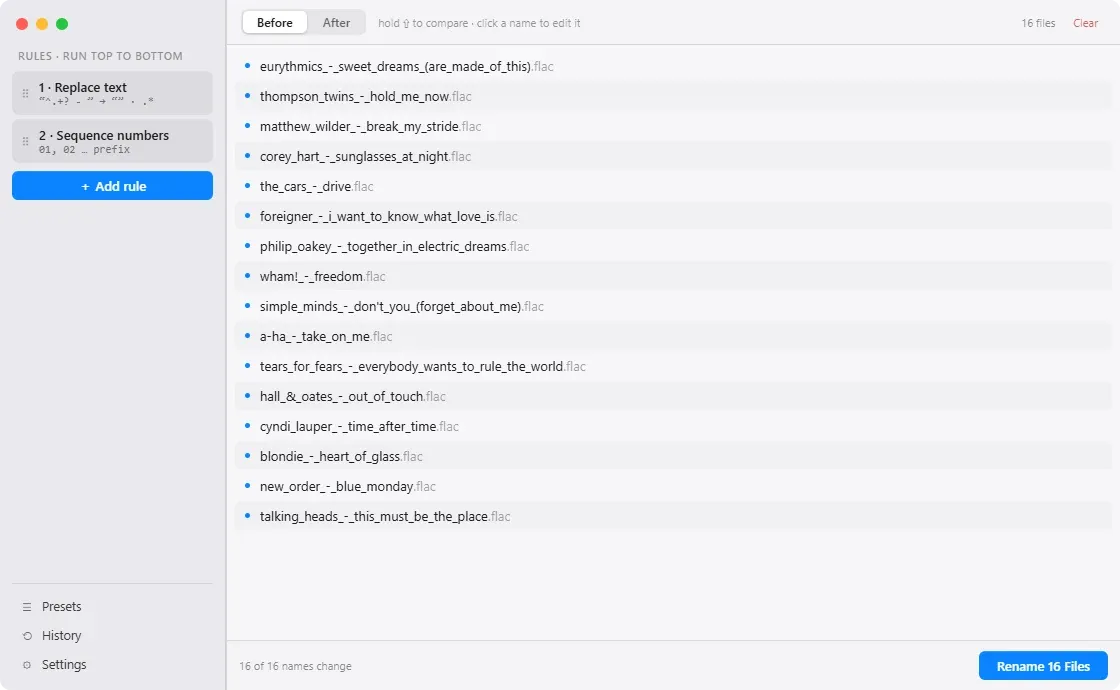
Relabel is a bulk file renamer for macOS. You drop files in and stack up rules in the sidebar, and every name a rule matches updates the moment that rule is applied. Nothing touches the disk until you press Rename.
It exists for a practical reason. I am moving from Windows to macOS, and the renamer I have leaned on for years does not come with me. So I designed the replacement before I built it. What follows is that design, and a prototype of it you can actually use.
Starting point
The app this one comes from
My brother Matt wrote Bulk Rename for Windows in 2015. He built it by hand over about a year and shipped it on the Microsoft Store, and it is still the tool I reach for when I have a pile of names to fix. Relabel does not start from a blank page. It starts from his.
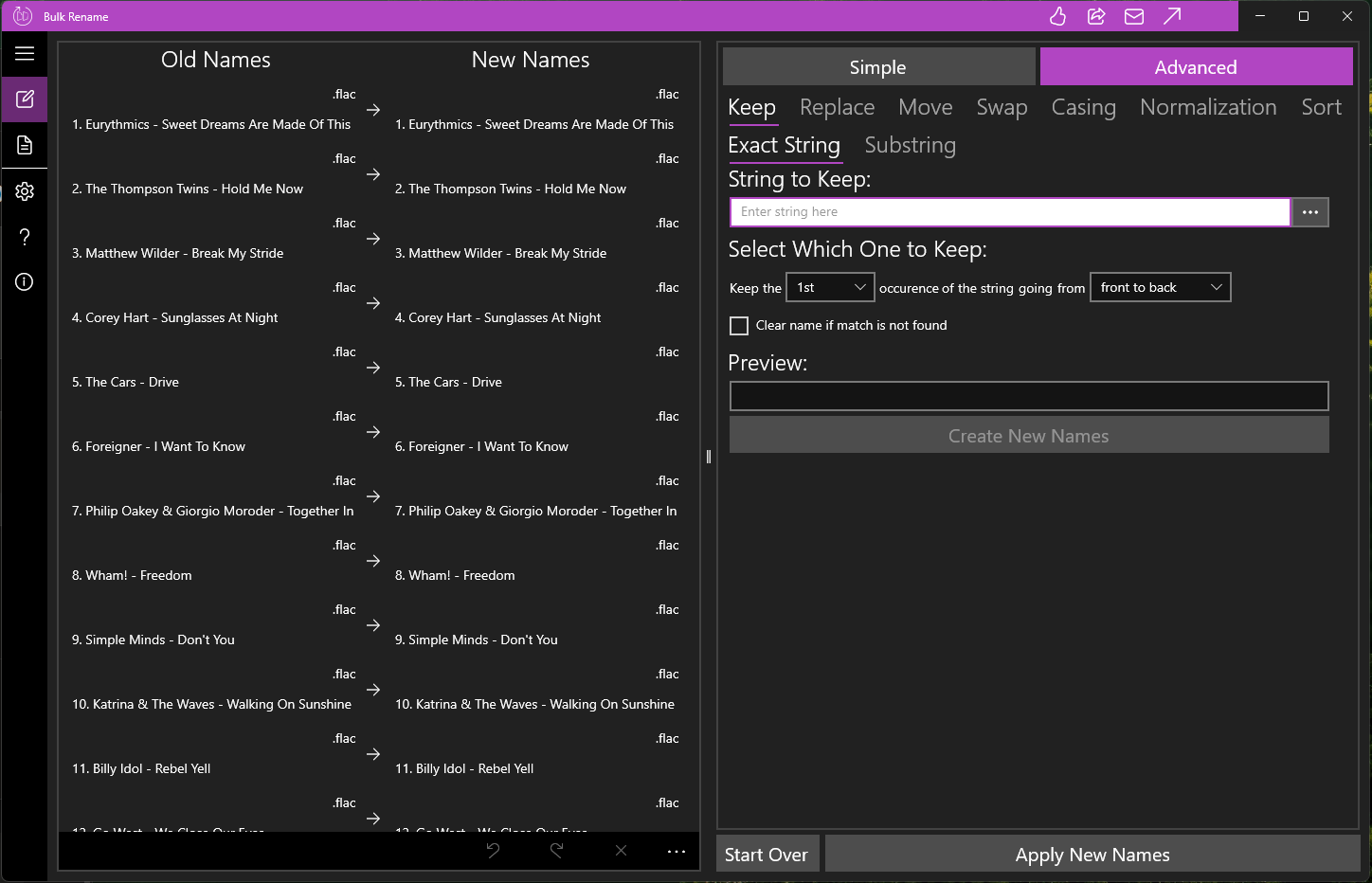
It is a deep tool. Seven families of operation with variants beneath them, an undo and redo stack over the list, and a two column view that always shows you where a name started and where it ended up. The two column view is the part I kept.
The sample files in my prototype are his. The first nine are the same eighties singles in the same order he used to demo Bulk Rename, and the rest of my list carries on from there. A few of mine arrive underscored, because that is the state files show up in.
The problem
One operation at a time, four levels down
The thing I wanted to change is the shape of the work, not the feature list. In Bulk Rename a change is a trip through a hierarchy: pick Simple or Advanced, pick one of seven operations, pick a variant underneath that, fill the form, press Create New Names. The result lands in the New Names column and the next change starts the trip over.
Four levels before a text field
Mode, then operation, then variant, then the form. Every one of those is a tab row, and three of them are still on screen taking up space after you have made the choice.
Preview is one name
There is a single Preview field above the button. It tells you what one name will look like. If sixteen files are selected, the other fifteen are a guess until you commit.
Steps stop existing once applied
A finished operation lives in the New Names column as text. You can still edit an individual name by hand, but the operation itself is not editable, so changing your mind about step two means unwinding everything after it.
None of that is unique to Matt's app. Bulk renamers are a small field and most of them work about this way, which is a fair part of why so few are pleasant to use. It is also old Windows convention, and I am designing for a different machine.
The model
Rules stay on screen and run top to bottom
The whole design turns on one change. A rule is not an action you fire, it is an object that sits in a list. It stays visible, it can be reordered, it can be edited later, and it can be deleted without disturbing the ones around it. The sidebar header says RULES · RUN TOP TO BOTTOM, because that is the entire mental model and it should not need explaining twice.
Find and replace, plain or regex
Prefix or suffix 01, 02, 03
Title Case, UPPER, lower
Prefix or suffix a string
Collapse and trim whitespace
Five types to start. Matt's seven cover more ground and I intend to match them, but five that compose cleanly was the set worth getting right first. Stacking Replace on top of Tidy spaces on top of Sequence numbers already reaches a fair amount of what the extra operations were for.
The list previews continuously against every file, not against one. The footer keeps a running count of how many names the stack changes, which is the number I want before I press anything. It counts names that come out different from how they went in, so a count short of the total tells me some files the rules never touched at all.
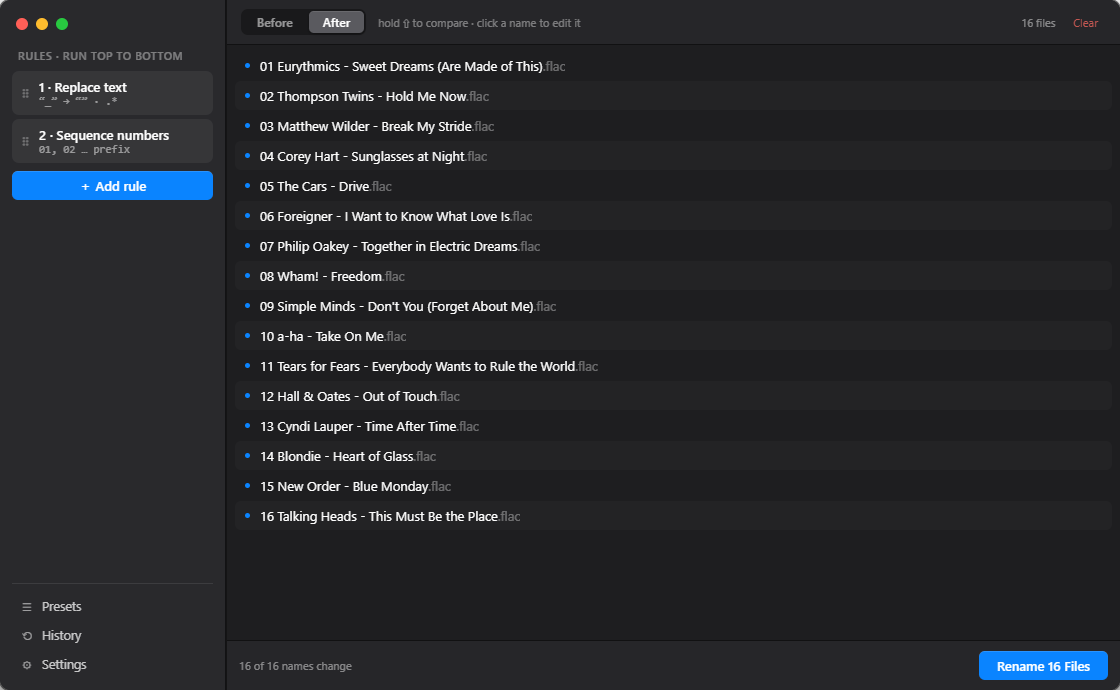
It opens with two rules already in place rather than an empty sidebar, because a worked example explains the model faster than instructions would. The rule I reach for most is Replace text, doing one of three jobs: swapping underscores for spaces, substituting one string for another, or deleting a string by replacing it with nothing. That is why Replace text sits at the top of the list, and why regex is a toggle on it rather than a rule of its own.
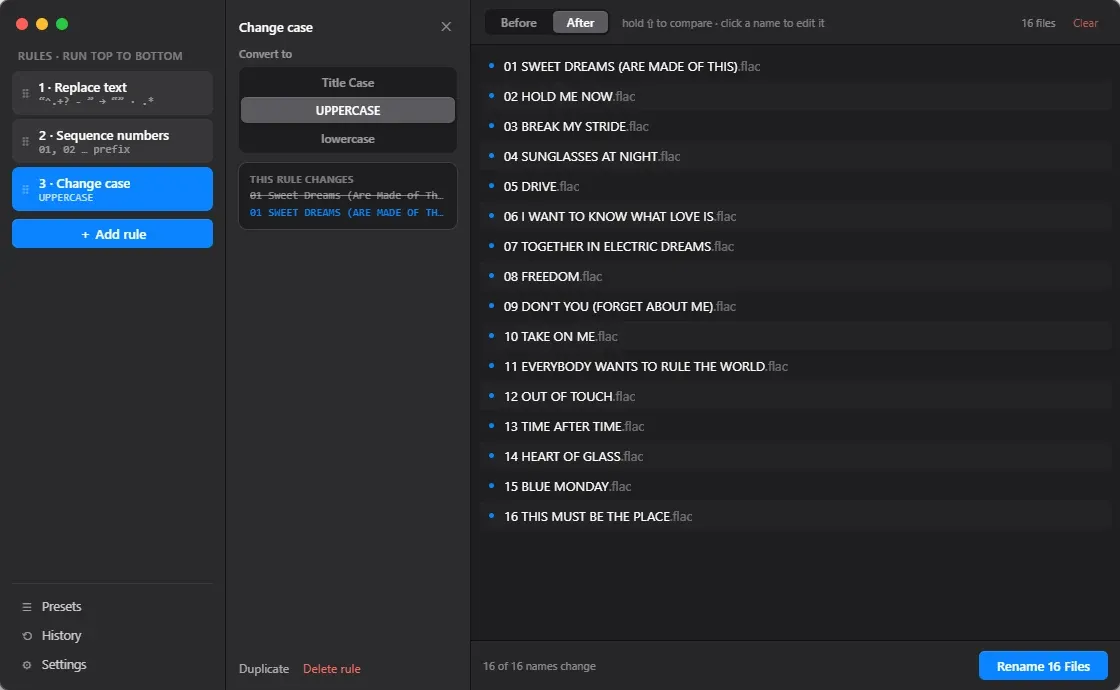
Opening a rule shows a small panel of what that one rule does on its own, struck through and rewritten. So you can read the whole batch on the right and the single step on the left without switching between them.
Order is not decoration. Load the sample files in the prototype below and some of them arrive underscored instead of spaced. The first rule cuts everything up to the first space-dash-space, and a name written Corey_Hart_-_Sunglasses_at_Night does not contain one, so the rule slides past and the file comes out still underscored, just numbered. The fix is a rule that turns underscores into spaces, dragged above the one that does the cutting. The sample files are there so you can try all of this, rename included, without pointing the app at anything you care about.
The rule I set
If macOS ships the control, use the macOS control
Apps should look like they belong to the system they run on. That is most of why I am building this instead of running the Windows one under emulation, so designing something that ignored the platform would defeat the point. The rule I gave myself: nothing gets drawn by hand unless the system has no equivalent.
I did not arrive there first time. The version before this one was built on Liquid Glass: tinted, translucent, visibly designed. On its own it looked good. Open beside Finder and Mail it looked like a visitor, so the theme went out and the app came back on flat neutral surfaces, alternating rows, and accent used only for selection and the one primary button. It became less distinctive and easier to read in the same move, which is the trade this platform asks you to make.
Left alone
Sheets, segmented pickers, switches, popovers, push buttons, the traffic lights, and the sidebar's real behind-window translucency rather than a gradient standing in for it. The Settings sheet is a stock macOS settings sheet and reads as one on sight.
Built by hand
The rule row with its drag handle and parameter summary, the file row that shows two states of one name, the diff panel in the rule editor, and a vertical segmented control, since macOS ships only a horizontal one and three case options read better stacked.
One decision stands in for the rest. The prototype's accent is a particular blue, and the build does not use it. It takes whatever accent color the person has set for their system, so a small app installed for one job matches every other window they have open. Keeping my blue would have been more on brand and more wrong.
One thing to be clear about below. The prototype draws these controls in HTML, closely enough to judge layout and behavior but no more than that. In the SwiftUI build they stop being drawings and become the real ones, which is the whole point of keeping the hand-built list short.

The icon belongs to the same argument. It is a rounded tile at the proportions macOS uses, and it ships as a dark version and a light one so it sits correctly whichever way the system is set. The mark itself is a name caught mid-edit, with the text cursor sitting in it.
The prototype
Try it
It runs. Load the sample files and start stacking rules. Every state described on this page is reachable in it, including the ones that only show up when something goes wrong.
This one is interactive. It needs more room than this screen gives it, so it opens on its own.
Open the prototypeDetails
The parts that are easy to get wrong
A renamer is a destructive tool pointed at files you care about. Most of the design time went into the small decisions around that, not into the rules themselves.
Hold Shift to check your work
Before and After is a toggle, but reaching for it breaks your train of thought. Hold Shift and the list flips to the original names for as long as you hold it. Let go and you are back. Comparing is a glance, not a mode.
One file that will not behave
There is always one name the rules cannot reach. Click it and type. That file keeps your hand written name and ignores the stack, so a single oddity does not force you to write a rule for it.
Two names, one slot
Collisions are a setting rather than a dialog you meet halfway through a batch: auto-number the duplicate, or skip the file. Rows heading for the same name say so in advance, in the wording of whichever setting is on. Empty names and illegal characters are the harder stop: the row turns red and the Rename button stops offering to rename, reading Fix 1 Error instead.
A batch you can take back
Renaming posts a toast with Undo on it, which puts the old names and the rules that made them straight back. History holds every batch after that, each one still reversible, and the whole record exports as a .log for when the rename was right but something downstream needs to know what changed.
An edit that stops being an edit
A hand-typed name outranks the rules, and it says so with its own marker. But if you later add a rule that arrives at the same name on its own, the override quietly dissolves and the file goes back to being ordinary. Nothing to clean up, because the exception stopped being one.
A clean sheet by default
Rules clear once a batch is applied. Leaving them loaded is how you rename the next set of files by accident, and anyone working across several sessions on one ruleset can turn it off in Settings.
Presets for the jobs you repeat
Three built in, and you can save your current stack as another. A preset loads as the whole stack rather than adding to it, so it is a starting point you edit rather than a block you drop on top of what is already there.
Limitations
What five rules will not do
Keeping the rule list short was the whole point, and it costs something. These are the jobs Relabel does awkwardly or cannot do at all.
Five rules, not seven
Matt's app has Move, Swap, Sort and Normalization. Relabel has none of them yet. A regex inside Replace text covers some of that ground, but reordering the parts of a name, or sorting a list, is not something any stack of these five reaches. That is a gap to close, not a line I am holding.
Numbering follows the list, and the list sorts by name
Sequence numbers count down the list in the order the files are shown, and that order is the one Finder would put them in. Numbering a batch by date, or by anything you chose yourself, is not possible, because there is no way to sort the list first.
Extensions are off limits
No rule touches the part after the last dot. That is deliberate, since it is the quickest way to break a file, but it means a batch of .jpeg that should read .jpg is not a rule at all. It is one manual edit per file.
The escape hatch is a regex
Five rules stay legible because anything unusual falls through to the regex toggle in Replace text. That is a real answer and a narrow one. It works if you write regex, and if you do not, the app has nothing else to offer you.
Where it stands
The prototype is the spec
The design is finished and the prototype above is what the SwiftUI build is written against.
Designing before building had one useful side effect. There was no component library to lean on and no sense of what SwiftUI would make easy, so every control on screen is there because the work needed it rather than because it was cheap to add. The short hand-built list in section 05 is what that produced, and it is the part I expect to hold up as the app meets a real machine.
Five rules is not the target. Everything Matt's app does, in this shape, is the target, and then the things his could not do. What is here now is the starting point I wanted to be sure of before adding to it.